Install FireGuard on Fire TV
Follow this simple guide to sideload FireGuard on your device.
Total time: ~3–5 minutes per device
1
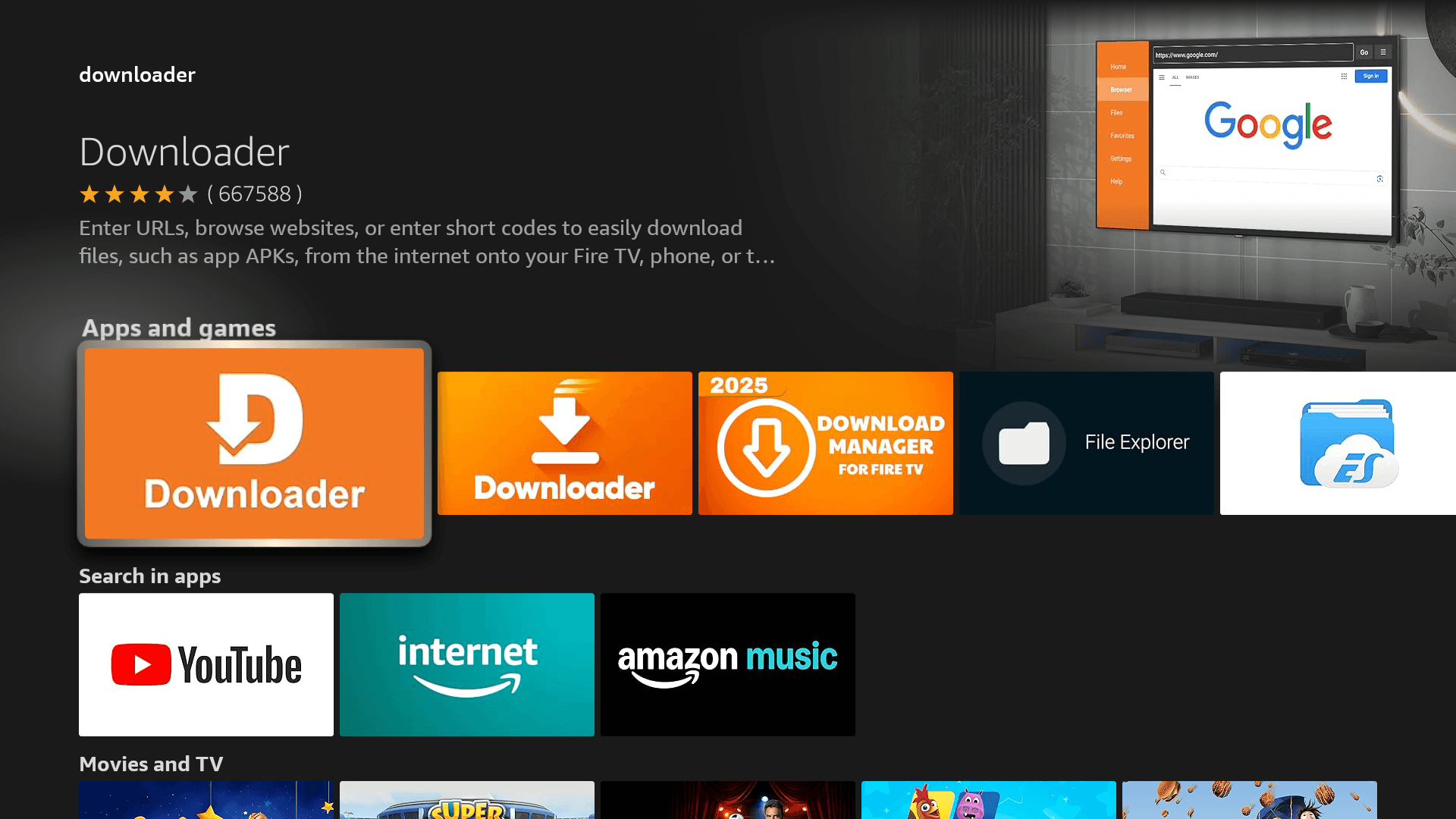
Install the 'Downloader' App
- Open Search on your Fire TV
- Type "Downloader"
- Select the orange Downloader icon and install it
2
Enable App Installation
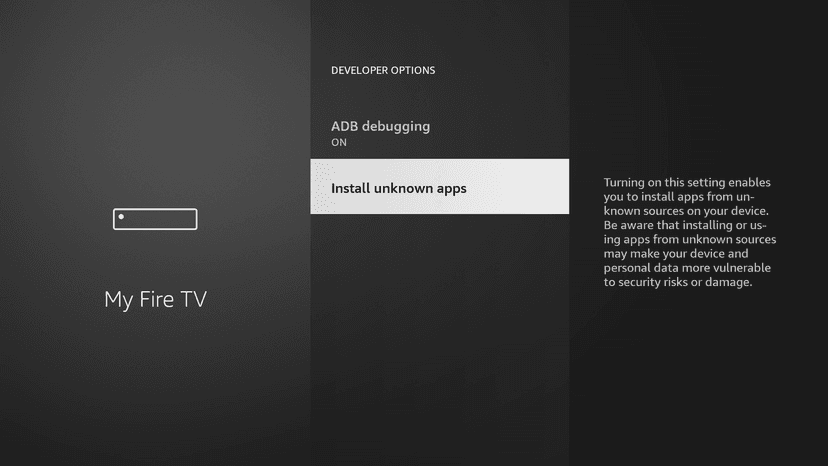
- Go to Settings > My Fire TV > Developer Options
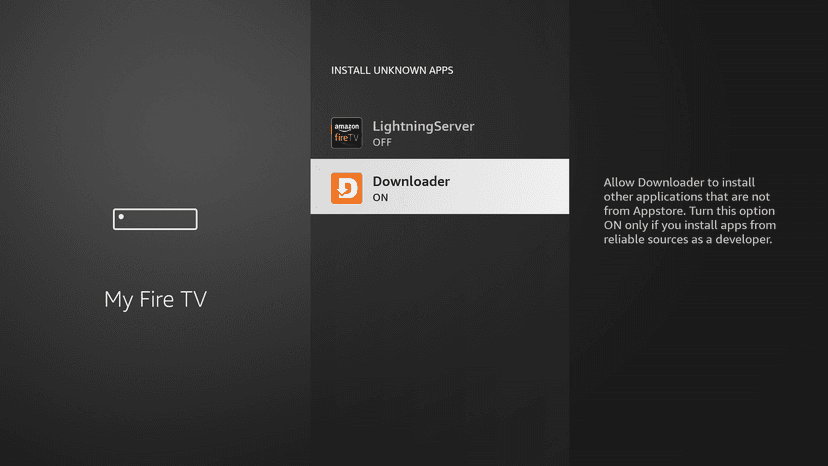
- Click Install Unknown Apps
- Ensure it is turned ON (or ON for the Downloader app once installed)
3
Download and Install FireGuard
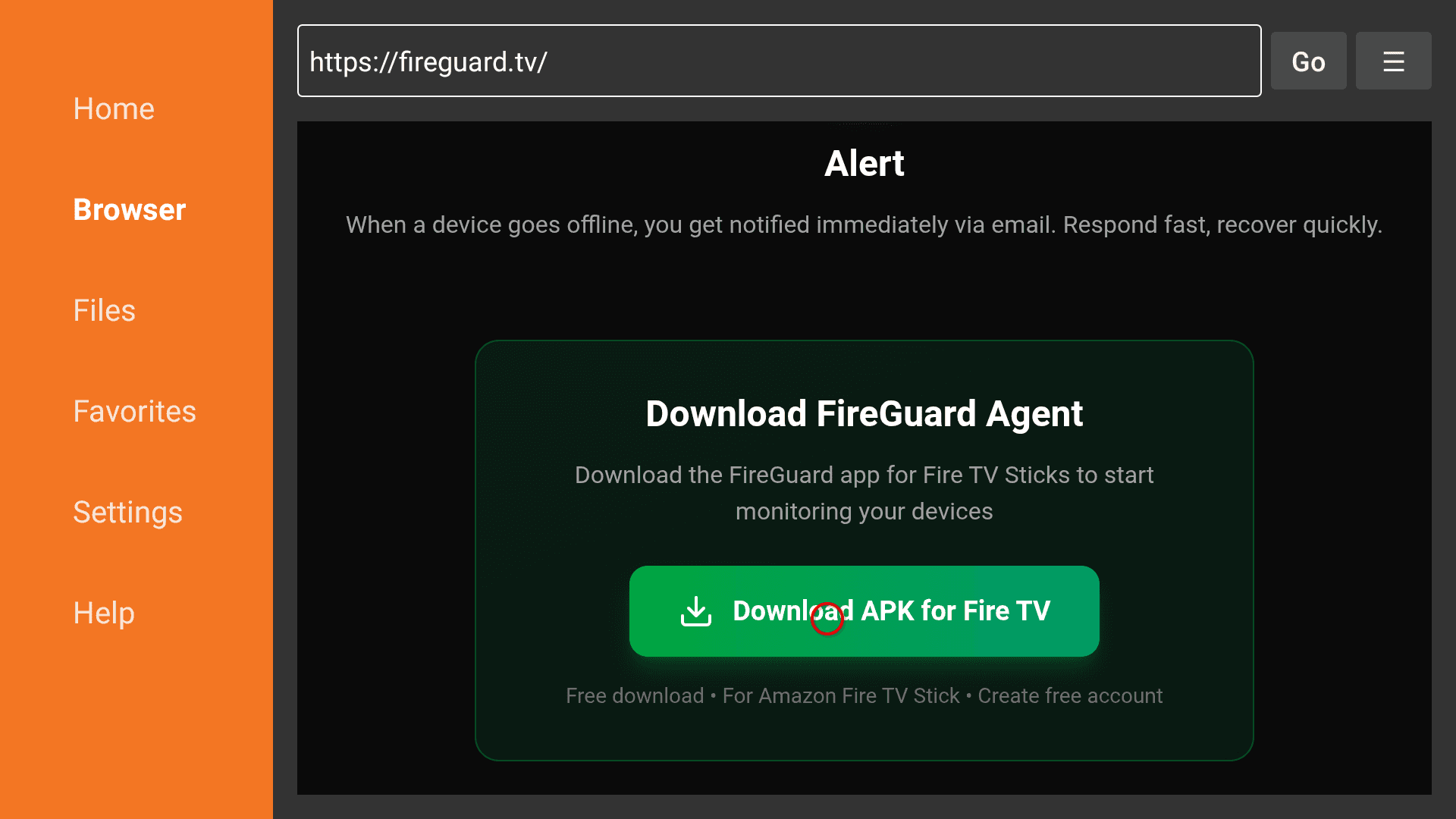
- Open Downloader
- Enter URL: https://fireguard.tv
- Click Go → Download FireGuard → Install
4
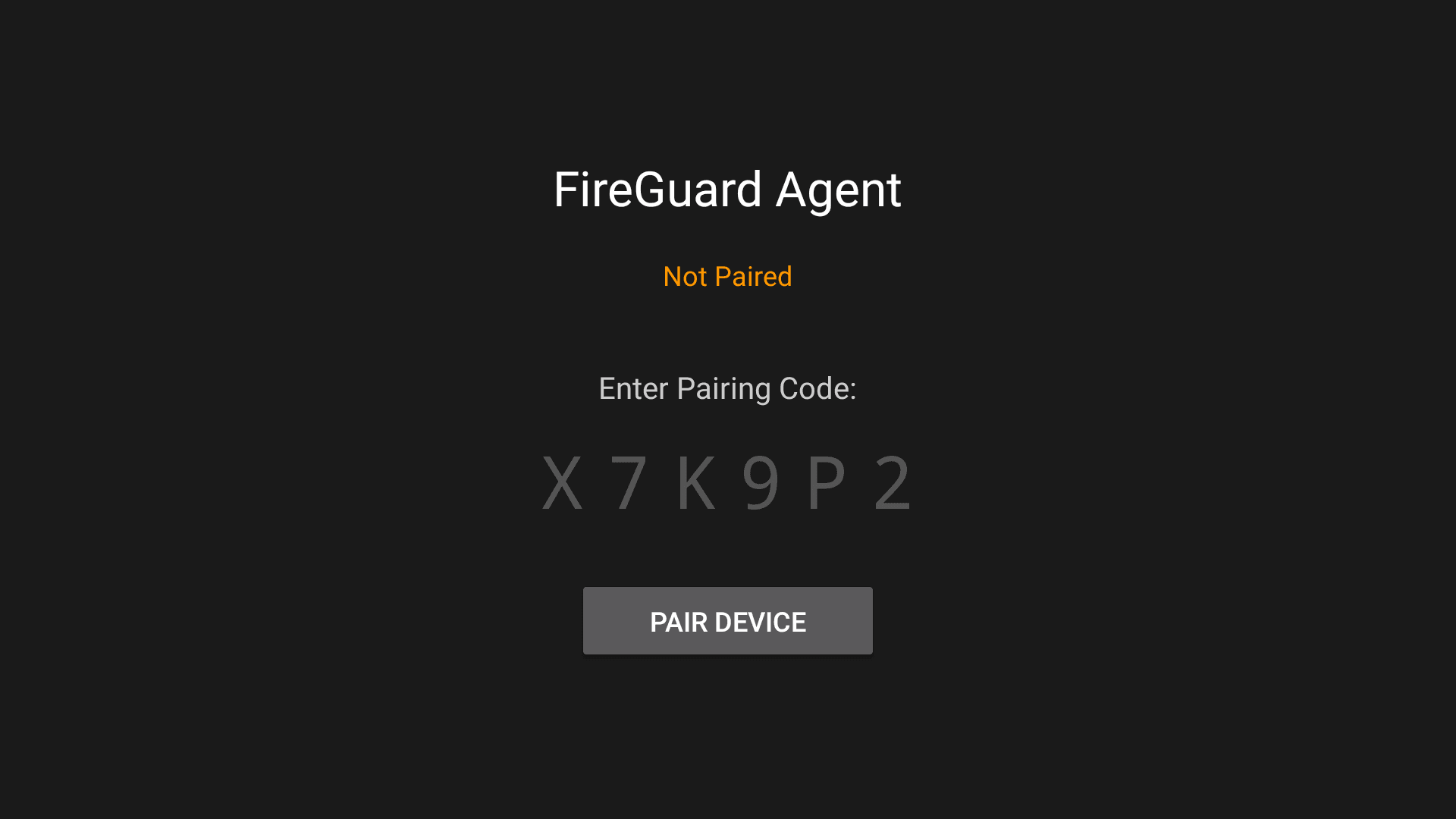
Open FireGuard & Get Pairing Key
- Open the FireGuard app
- You will see a Pairing Key on the TV screen
5
Pair Device (On Your Phone/Laptop)
- Log in to your dashboard at fireguard.tv
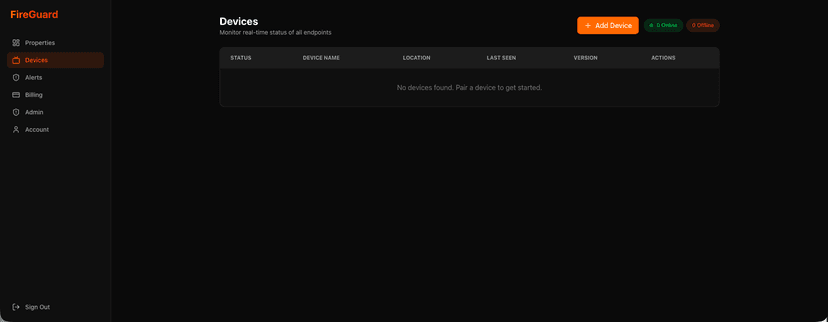
- Go to Devices and click Add Device
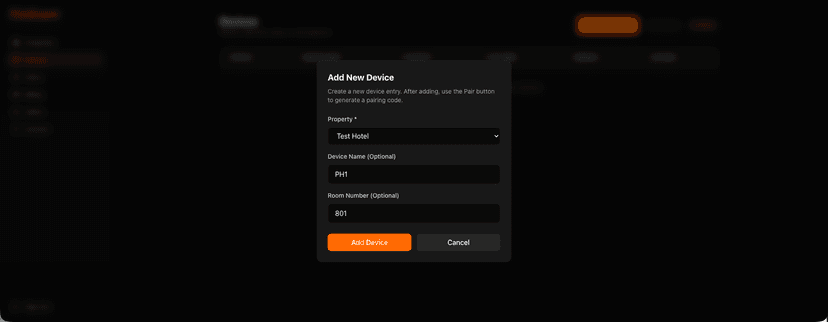
- Enter Device details
- Enter the Pairing Key displayed on your TV
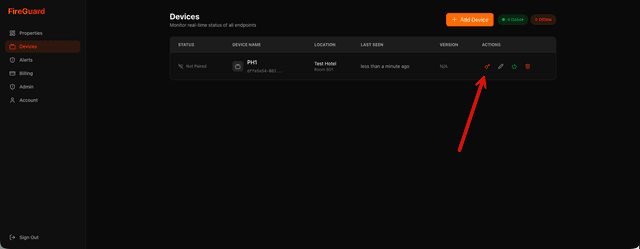
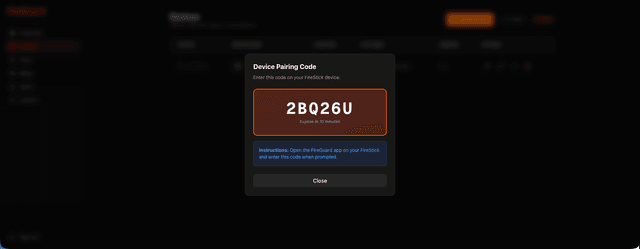
- Click Accept
6
Confirmation
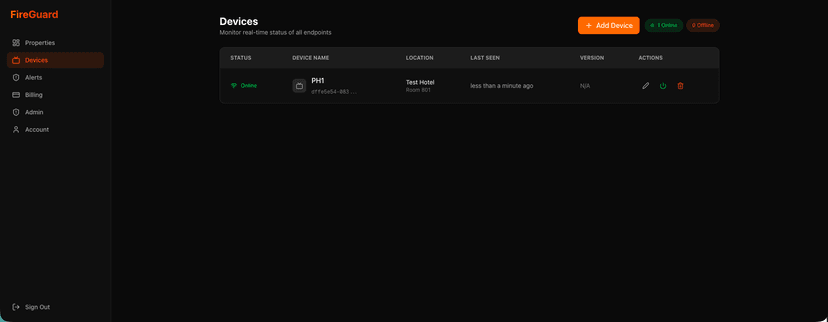
The device will now appear as Online in your dashboard.
(Installation Complete)
Troubleshooting
Can't install?
Make sure 'Install Unknown Apps' is enabled in Developer Options.
Device offline?
Check power and Wi-Fi. FireGuard reconnects automatically.
Developer Options missing?
Go to About > Fire TV Stick > Click the name 7 times rapidly to unlock Developer Mode.